Using the Composer
Send tracks to any inbox with confidence. This guide walks you through every part of the Composer, from choosing who you send as to hitting send.
Related: Manage your submissions
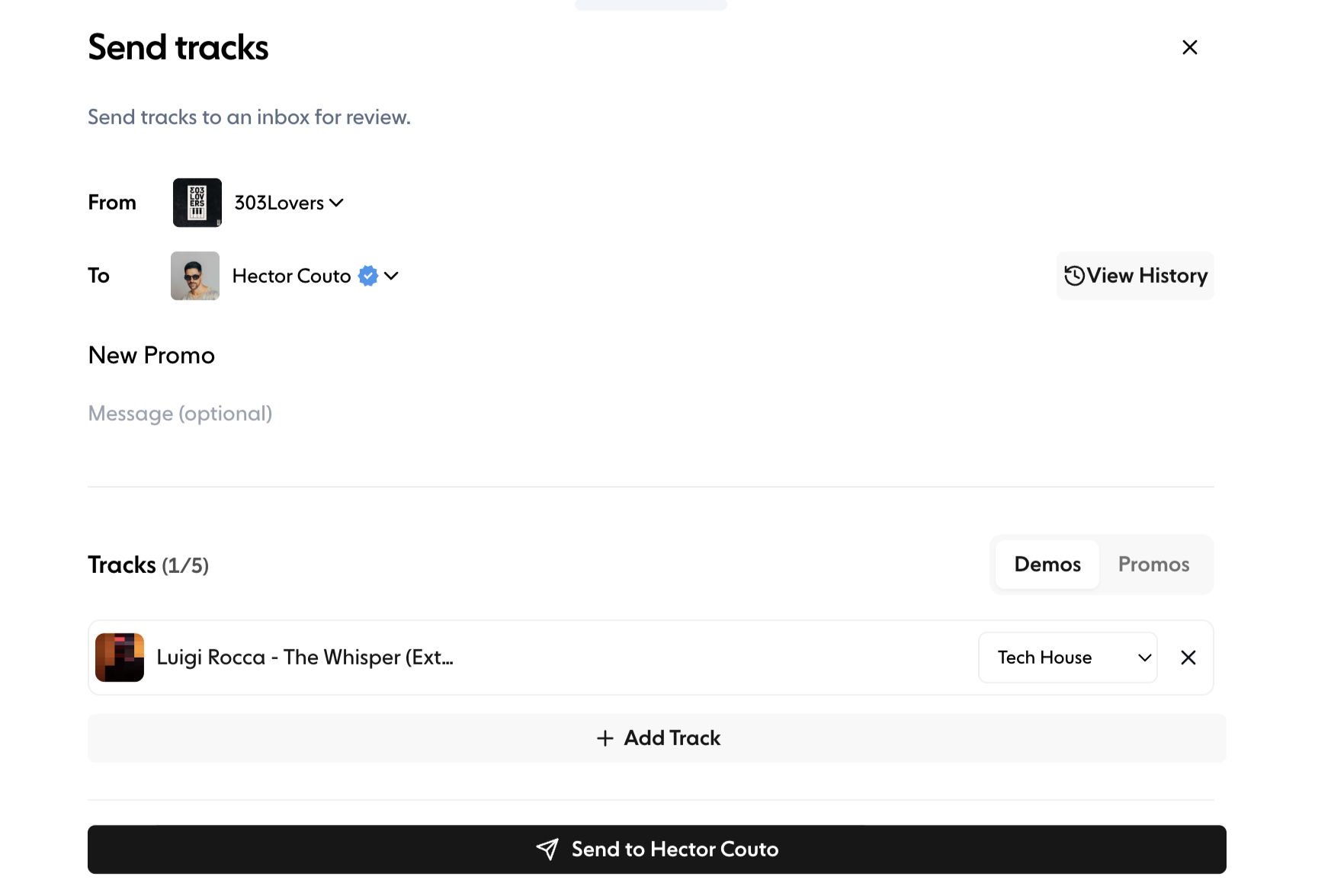
The Composer is where you prepare and send tracks to another inbox. You choose your sending profile, pick a recipient, add a title and message, choose whether you're sending demos or promos, and add your tracks.
Choose your sending profile#
At the top of the Composer you'll see From. Pick which of your profiles you want to send from, which is ideal if you manage multiple artists, labels or brands.
Choosing the right sending profile means recipients know exactly who the submission is coming from.
Choose the recipient#
Under To, search for the inbox you want to send your tracks to.
You can search for any public inbox.
Verified inboxes are marked with a blue tick.
Click View History to see what you've sent to that inbox before.
If your plan includes Lists, you can pick one of your Lists here to send the same tracks to every inbox in it.
This helps you keep track of ongoing relationships and past sends.
Add a title and message#
Give your submission a Title, then add a message if you like. The message is optional but recommended, especially for promos, label submissions or follow-ups.
Examples include:
Context about the track
Release date or promo details
Supporting notes or a personal message
Keep it brief and clear. You can also click Add link to attach links such as a video or webpage.
Select demos or promos#
Next to the Tracks heading, choose whether you're sending:
Demos
Promos
This helps recipients sort and prioritise incoming submissions. Label inboxes only accept demos, so you'll only see Demos when sending to a label.
Add your tracks#
You can send up to 5 tracks per submission. Some inboxes accept fewer, and the counter next to Tracks shows how many the recipient allows.
To add a track:
Click Add Track
Select a track from your Library, or upload a new one
Choose the genre for each track
Genres help the recipient filter their inbox and understand the context of your submission.
Each track appears as a card showing:
Title
Artwork (if available)
Genre selector
Remove option
You can add or remove tracks until you're happy with the selection. Some inboxes also ask you to say whether a track uses a third-party sample or vocal pack, or to answer their own submission questions. These appear below your tracks when needed.
Review and send#
Before sending, double-check:
Sending profile
Recipient
Title and message
Track list and genres
Submission type (demos or promos)
Once ready, click Send to followed by the inbox's name. Your submission is delivered to their inbox straight away. Below the button you can see how many opportunities you have left this period. You can revisit past submissions with View History.
Summary#
The Composer is your central tool for clean, professional submissions on Trackstack. Whether you're sending demos to labels or promos to DJs, it helps you:
Choose your identity
Add tracks
Provide context
Set the right genres
Send quickly and accurately
A well-prepared submission gives you a better chance of meaningful feedback and ongoing support.