Customising your workflow
Set your Default Stack, decline message, decline label and Feedback Templates so you can review faster and respond to artists consistently.
Related: Sharing your link
Get the most out of your Inbox by fine-tuning your workflow and setting it up for speed. Customising how you review, organise and respond to submissions helps you decide faster, save time and keep a consistent tone with artists.
You'll find these settings in Inbox settings under Workflow.
Default Stack#
Your Default Stack is the Stack tracks go into when you Shortlist or Support them with faster actions, such as:
Keyboard shortcuts
Bulk actions
Quick reviewing sessions
You need a Default Stack set before review shortcuts will work. Choose a Stack that matches your typical first review step, such as "Second listen" or "Trying out in sets".
Default Quick Decline Message#
When you decline a track without writing a custom note, Trackstack sends your Default Quick Decline Message to the artist. It needs to be between 10 and 500 characters.
This helps you:
Give consistent, respectful feedback
Save time during high volume reviewing
Stay professional without writing each message by hand
Example default message:
Sorry this track was not doing it for me this time. I listen to all the music sent on Trackstack personally, so please keep sending and I will keep listening. Best wishes, Jamie.
You can also pick from a set of suggested decline messages to help set the right tone.
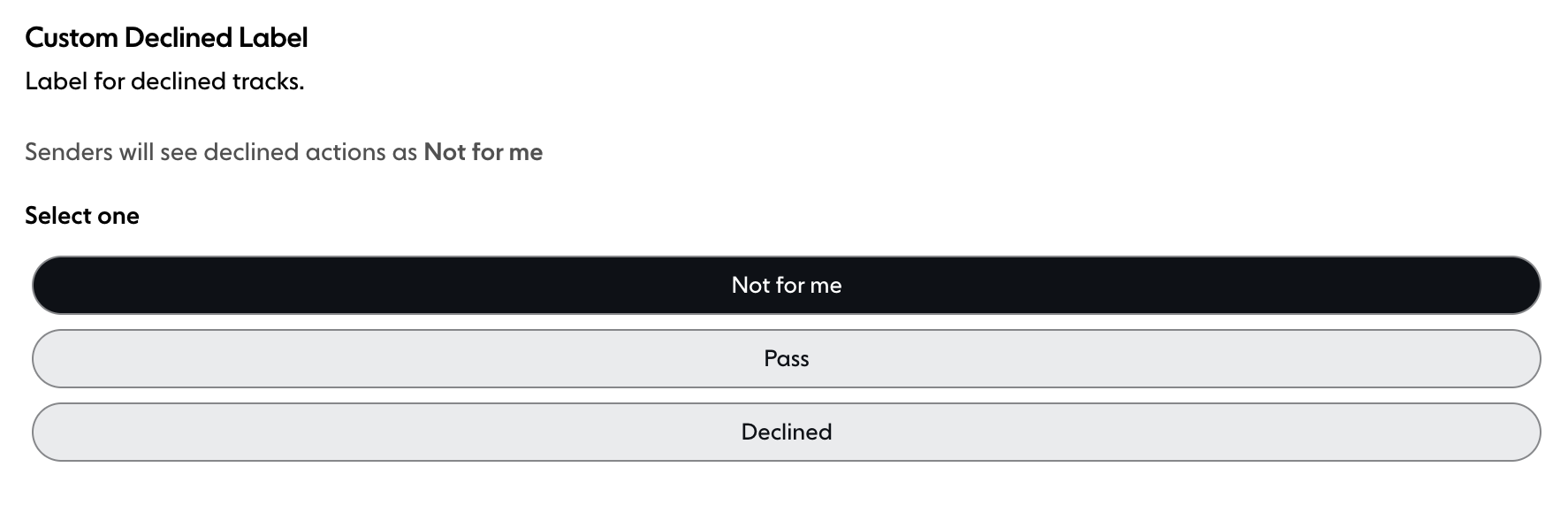
Custom Declined Label#
Choose how declines appear to senders. Options are:
Not for me (Artist and Curator inboxes) or Not for us (Label inboxes)
Pass
Declined
This only changes the label the sender sees. The action stays the same, so pick the one that fits your communication style.
Feedback Templates#
Feedback Templates let you save predefined responses you can apply quickly while reviewing. Each template is either a Decline or a Positive template.
Use them for:
Consistent messaging
Faster review cycles
More thoughtful feedback without typing it each time
Examples:
"This track did not make it this time but please send more when they are ready. Thank you."
"Almost there. Not quite right to sign after playing out but I would love to hear more on this vibe."
"Good bassline and drums, not into the vocal."
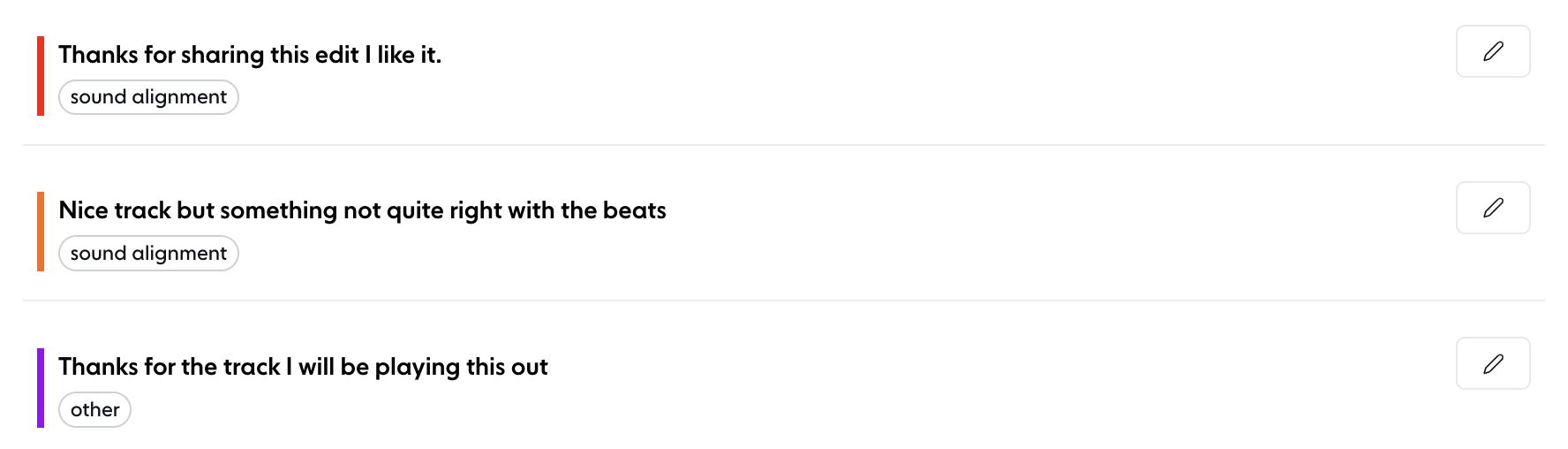
Templates help you keep a strong feedback loop with artists while cutting the time you spend writing individual comments.
Summary#
Workflow settings let you fine-tune Trackstack to match how you review and communicate. Adjusting your defaults, decline behaviour and templates makes your Inbox fit your working style, whether you're handling a handful of submissions or hundreds.